

















































































How to Use Shopify Sidekick: 13 Prompts That Do the Work
 How-to10 min read
☷Table of contents▾
Sidekick is Shopify’s AI assistant, and it lives inside your Shopify admin. To open it, click the purple glasses icon that appears on every admin page, then type what you want in plain language. Sidekick answers questions about your store, fills in forms for you, builds reports, and can even generate small custom apps.
This tutorial shows you how to use Shopify Sidekick for real tasks, with exact steps and a prompt to type for each one. It also answers the questions the docs skip past: who gets Sidekick, how to delete conversations, and what to check when it seems broken or missing.
Key takeaways
- Sidekick is the purple glasses icon in your admin. It is included with every Shopify plan.
- It answers questions with your real store data, fills in forms, builds reports, and installs apps from the chat.
- App generation needs a Grow, Advanced, or Plus plan and a desktop browser.
- Nothing goes live until you click Save, so you can experiment without fear.
What is Sidekick on Shopify?
Sidekick is an AI-enabled commerce assistant built into the Shopify admin. You chat with it by text or voice, and it can either do tasks for you or walk you through them step by step.
The difference from a general chatbot is access. Sidekick connects directly to your store’s data, so it can pull your real sales numbers, edit your real products, and open the right admin page for you. ChatGPT can only talk about Shopify. Sidekick works inside it.
It also respects staff permissions. If a staff member can’t see orders in the admin, Sidekick won’t show them orders either. And for longer jobs, Sidekick keeps working in the background and notifies you when the result is ready to review.
Is Shopify Sidekick free?
Yes. Sidekick is included with your Shopify plan at no extra charge, and it’s available to all merchants, globally and on all plans. Features and usage limits vary by plan.
Two exceptions matter. App generation only works on Grow, Advanced, and Shopify Plus plans. And Sidekick doesn’t run on the mobile web admin or in the Shopify app on tablets, including iPads, so use a desktop browser or the phone app.
How do you open Sidekick?
On desktop, click the Sidekick icon (the purple glasses) anywhere in your admin. Hold Shift while you click it to open Sidekick in fullscreen mode instead of the side panel.

In the Shopify mobile app, open any page in your store and tap the Sidekick icon. Type your question and send it, the same as any chat.

You can also talk instead of type. Click the voice icon in the chat, allow microphone access, and speak. Voice mode responds in whatever language you speak, and it works on Apple Watch through the Shopify watch app too.
Language flexibility isn’t limited to voice. In text chat, Sidekick adapts to your store’s language settings, so ask in the language you’re most comfortable with. You can switch between voice and text at any point by ending the call.
Screen sharing is newer: it’s in early access, desktop only, and starts from the screen share card on your admin Home. Share a tab, a window, or your whole screen, and Sidekick can see what you see while it helps.
Do you need Sidekick, Shopify Magic, or something else?
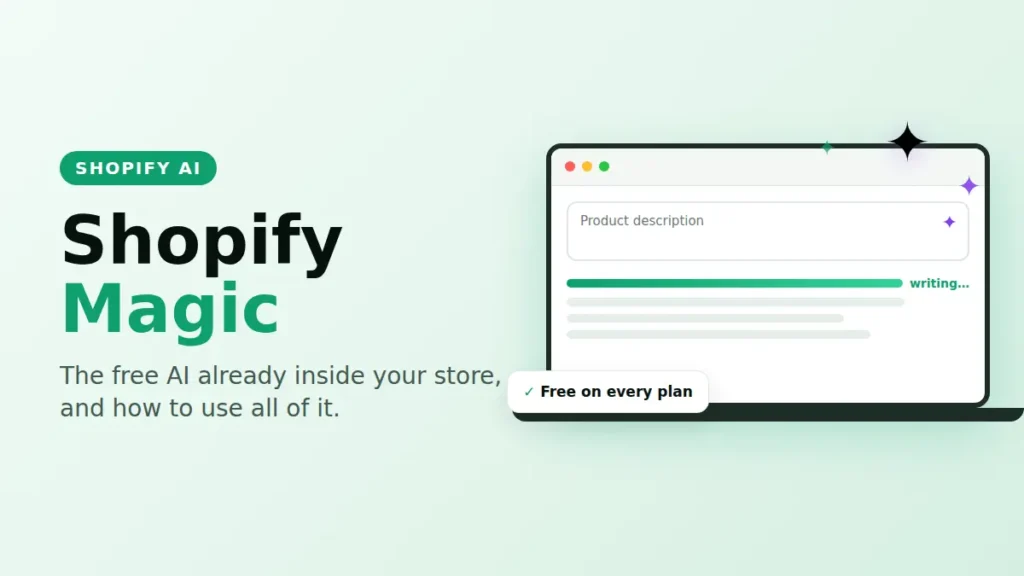
Use Sidekick when you want to hand off a task or ask a question in chat. Use Shopify Magic when you just want one field written or one image cleaned up. Magic is the set of star-icon AI buttons scattered through admin forms, while Sidekick is the assistant that works across your whole store.
Want to earn with the tools you are reading about?
The $50K AI Income Roadmap: 20 modern ways to earn with AI, with steps, prompts and real numbers. Free, one chapter a day.
The third branch trips people up. Sidekick helps you run your store, but it doesn’t help your customers shop. AI that sells for you, inside ChatGPT and other assistants, is the world of agentic storefronts, and that’s a separate setup.
How do you use Shopify Sidekick for everyday tasks?
Here are six tasks Sidekick is documented to handle, each with steps and a prompt you can adapt. In every case, review before you save: Sidekick highlights the form fields it filled in purple so you can spot its changes.
Pro tip: Sidekick highlights every field it fills in purple, and nothing is saved until you click Save. Try any prompt below on a test product first and you risk nothing.
1. Write or improve a product description
- Open Sidekick from any admin page.
- Type
@and pick the product so Sidekick knows exactly which one you mean. - Ask Sidekick: “Write an SEO-friendly product description for @[product] in a warm, simple tone.”
- Review the purple-highlighted text on the product page, edit anything that sounds off, then save.
The @ mention works for more than products. You can point Sidekick at orders, customers, discounts, collections, and other store resources the same way.
2. Create a discount
- Open Sidekick and describe the discount in one sentence.
- Ask Sidekick: “Create an automatic order discount of 10% off for all customers.”
- Sidekick fills out the discount form. Check the dates, limits, and eligibility before you save it.
Sidekick handles amount-off and free shipping discounts. Be specific about start dates and who qualifies, or you’ll get Shopify’s defaults.
3. Get answers from your analytics
- Open Sidekick and ask your question in plain words. You don’t need to know any query language.
- Ask Sidekick: “Show me the sales, costs, profits, returns, and discounts for my top 100 products.”
- Sidekick writes the ShopifyQL query for you and shows the result as a table or chart.
- Ask for a CSV export if you want the data in a spreadsheet. Download it right away, because export links expire after 10 minutes.
4. Change theme settings and find things in your admin
- For navigation, just ask from anywhere: “Take me to my shipping settings.” Sidekick opens the page.
- For design changes, open the theme editor first. Sidekick only edits themes from inside the editor.
- Ask Sidekick: “Make my store feel more retro.”
- Sidekick adjusts colors, typography, and spacing. Nothing is final until you save, so preview and keep or discard.
5. Discover new apps
- Open Sidekick and describe the problem, not the app name.
- Ask Sidekick: “Can you recommend gift card apps for my store?”
- Sidekick suggests apps and can compare similar ones side by side.
- When you pick one, you can install it straight from the chat.
This beats scrolling the App Store because Sidekick knows your store’s context. Describing your goal (“I need to reduce cart abandonment”) gets better suggestions than naming a category.
6. Generate an app in your Shopify admin
This is the newest trick, and it’s gated: you need a Grow, Advanced, or Shopify Plus plan, the “App development: Develop” staff permission, and a desktop browser.
- Open Sidekick, then click the plus icon and choose “Generate an app”. Typing
@appin the chat works too. - Describe what you want. Ask Sidekick: “Build an app that shows customers who haven’t ordered in 90 days and drafts a win-back discount for each.”
- Review the result in the app editor. You can request changes in chat, edit the code directly, preview it at different screen sizes, and roll back to earlier versions.
- Test it, then click Install to add it to your admin.
Generated apps run only inside your admin and read store data like orders, products, customers, and analytics through the Admin API. They can’t touch your theme, checkout, or customer accounts, and generation has hourly and weekly limits. Test before installing, because an app can change customer-facing data like prices and inventory.
What should you ask Sidekick? A prompt library
Every prompt below maps to a capability in Shopify’s own documentation, so none of them should get you a “sorry, I can’t do that.” Swap in your own products and numbers.
| Task area | Copy-paste prompt | What you get |
|---|---|---|
| Store setup | “Help me create a to-do list for launching my store.” | A guided task list in your admin |
| Store setup | “How do I update my DNS settings?” | Step-by-step domain and DNS guidance |
| Products | “Write an SEO product description for @[product] in a friendly tone.” | Draft description, highlighted for review |
| Products | “Help me create a new collection of my best-selling summer products.” | A drafted collection |
| Products | “Generate a hero banner image for my summer sale featuring a beach scene.” | AI image you can save to your store |
| Discounts | “Create an automatic order discount of 10% off for all customers.” | Pre-filled discount form |
| Discounts | “Set up a free shipping discount for orders over $50.” | Free shipping discount draft |
| Analytics | “Show me the total sales for Canadian customers over the past 60 days.” | Chart or table, no ShopifyQL required |
| Analytics | “Show me sales, profits, returns, and discounts for my top 100 products.” | Custom report you can export |
| Customers | “Create a customer segment for customers subscribed to my marketing emails.” | A saved segment for campaigns |
| Marketing | “Create a workflow that tags orders over $200 as VIP.” | A Shopify Flow automation draft |
| Apps | “Recommend review apps and compare the top options for a small store.” | Suggestions plus a comparison, installable from chat |
| Theme | “Make my store feel more retro.” (from the theme editor) | Color, type, and spacing changes to preview |
If you find yourself typing the same prompt weekly, save it as a skill. Type / plus a name in the chat, confirm, and Sidekick stores it as a shortcut. You can keep up to 25 skills, edit or delete them anytime, and share them with other merchants by link.
How do you delete Sidekick conversations in Shopify?
Find the conversation in the Sidekick conversations list in your admin sidebar, click the three-dot menu next to it, and click Delete. That removes the conversation from your chat history and from Sidekick’s memory. Your saved preferences stay as they are.
The same menu lets you rename conversations, and you can search old ones by keyword. A few related controls worth knowing:
- Ask Sidekick “What do you remember about me?” in any conversation to get a summary of its stored memory.
- Ask it to forget a specific detail and it will confirm the deletion.
- You can turn memory off for a single conversation in its settings. This is one-way: once memory is off for a conversation, it can’t be turned back on. Start a new conversation instead.
What can’t Sidekick do?
Sidekick is genuinely useful, but the edges are real. Knowing them saves you from blaming yourself when something doesn’t work.
- No tablets, no mobile web. Sidekick doesn’t appear in the mobile web admin or in the Shopify app on iPads and other tablets.
- Theme edits only inside the theme editor. Asking for design changes from the dashboard won’t work, and edits aren’t applied until you save them yourself.
- Image quality varies. Shopify’s own docs note that image generation can produce unexpected or poor results. Treat generated images as drafts.
- Generated apps are admin-only. They can’t modify your theme, checkout, or customer accounts, and app generation is limited to Grow plans and up.
- It waits for your approval. Sidekick drafts and pre-fills, but you save, publish, and confirm. That keeps you in control, and it also means Sidekick won’t run your store unattended.
- Usage limits exist. They vary by plan, and app generation has its own hourly and weekly caps.
Is Shopify Sidekick down, or is it just you?
There’s no separate Sidekick status feed. Check Shopify’s status page and look at the Admin component, since Sidekick lives inside the admin. If Admin shows an incident, wait it out.
If the status page is green but Sidekick is missing or silent, run through this checklist in order:
- Check your device. Mobile web admin and tablet apps never show Sidekick. Switch to a desktop browser or the phone app.
- Check where you are in the app. On mobile, Sidekick hides while a dialog is open over the main screen.
- Refresh, or try another browser. Extensions that block scripts can break admin features, so test in a clean window.
- Check your permissions. Staff accounts only get Sidekick features their permissions allow. App generation specifically needs “App development: Develop”.
- Check your plan. If one feature is missing (like app generation on a Basic plan), that’s plan gating, not an outage.
- Give long tasks time. Sidekick moves big jobs to the background and notifies you when they’re done, so a quiet chat isn’t always a stuck chat.
- Start a fresh conversation. If a thread stalls, a new conversation often clears it.
- Still stuck? Contact Shopify support from the Help Center and mention what you tried.
Frequently asked questions
What is Sidekick on Shopify?+
Is Shopify Sidekick free?+
How do you delete Sidekick conversations in Shopify?+
Is Shopify Sidekick down?+
How do you generate an app in the Shopify admin using Sidekick?+
How do you use Shopify Sidekick to discover new apps?+
What should you do next?
Open your admin, click the purple glasses, and run two prompts from the library above: one analytics question and one content task. That pair shows you both sides of Sidekick, reading your data and doing work for you.
Then save your best prompt as a skill so it’s one shortcut away. If Sidekick’s chat can’t cover a workflow you need, that’s your cue to try app generation, or to browse the App Store the smart way: by asking Sidekick first.

The TechLaugh editorial team, led by founder Akshay Kumar Singh, tests AI tools on real marketing and creative work. We check pricing on the day of writing, note free-plan limits, and update guides when tools change or shut down.
Join the conversation